Use Coordinate Systems
Map your data coordinates into panel space.
Use this page to choose how uploaded positions are interpreted. Configure the initial 3D viewpoint and its interaction model in the camera and controller guides.
At a glance
Status: Supported data/view/panel coordinate workflow · Languages: Python and C Prerequisites: An existing panel and a visual with positions in a known coordinate system Result: Data values, normalized positions, or panel overlays map predictably into the plot
Task workflow
Decide which coordinate space your positions use, set the panel domain when positions are data coordinates, attach visuals with the matching coordinate interpretation, then bind a controller that operates on the same axes.
For normalized examples, positions often already live in [-1, +1] view coordinates. For plots,
maps, fields, and measurement-style overlays, prefer data coordinates plus an explicit panel
domain.
| Space | Use when | API hook |
|---|---|---|
DVZ_VISUAL_COORD_DATA |
Positions are scientific or application data values. | This is the default when dvz_panel_add_visual() receives NULL; set panel domains when data has non-default ranges. |
DVZ_VISUAL_COORD_VIEW |
Positions are already in panel view coordinates, usually [-1, +1]. |
Attach explicitly with coord_space = DVZ_VISUAL_COORD_VIEW. |
DVZ_VISUAL_COORD_PANEL |
Positions are normalized to the panel itself for fixed overlays. | Attach with coord_space = DVZ_VISUAL_COORD_PANEL. |
DVZ_VISUAL_COORD_PANEL_PIXEL |
Positions are panel-local logical pixels with a top-left origin. | Attach with coord_space = DVZ_VISUAL_COORD_PANEL_PIXEL; normally combine it with controller_mode = DVZ_CONTROLLER_FIXED. |
Pointer and query code often needs one-point pixel-space conversions instead of retained visual
attachments. Use dvz_panel_transform_point() for conversions between these explicit panel spaces:
| Space | Meaning |
|---|---|
DVZ_PANEL_COORD_FIGURE_PX |
Logical pixels in the figure layout. |
DVZ_PANEL_COORD_PANEL_PX |
Logical pixels local to the outer panel rectangle. This is the coordinate frame used by dvz_panel_query_px(). |
DVZ_PANEL_COORD_INNER_PX |
Logical pixels local to the inner panel rectangle after reserves. |
DVZ_PANEL_COORD_PLOT_PX |
Logical pixels local to the plot rectangle. |
DVZ_PANEL_COORD_DATA |
Panel data/domain coordinates in the current visible domain. |
DVZ_PANEL_COORD_VIEW |
Panel view/visual coordinates. |
For the common data/pixel cases, use dvz_panel_position_to_data() and
dvz_panel_data_to_position().
Data-space call sequence
These setup excerpts assume scene, panel, visual, and finite ordered domain endpoints already
exist.
import datoviz as dvz

dvz.dvz_panel_set_domain(panel, dvz.DVZ_DIM_X, xmin, xmax)
dvz.dvz_panel_set_domain(panel, dvz.DVZ_DIM_Y, ymin, ymax)
dvz.dvz_panel_add_visual(panel, visual, None)

controller = dvz.dvz_panzoom(scene, None)
dvz.dvz_panel_bind_controller(panel, controller, dvz.DVZ_DIM_MASK_XY)
dvz_panel_set_domain(panel, DVZ_DIM_X, xmin, xmax);
dvz_panel_set_domain(panel, DVZ_DIM_Y, ymin, ymax);

dvz_panel_add_visual(panel, visual, NULL);

DvzController* controller = dvz_panzoom(scene, NULL);
dvz_panel_bind_controller(panel, controller, DVZ_DIM_MASK_XY);
In this pattern, upload positions in your data units. The panel maps X and Y from the configured domain into the visual panel range used for rendering. Panzoom changes the visible part of that domain; it does not rewrite the uploaded source positions.
The expected result is a panel whose initial visible X/Y interval matches the two domains; dragging and zooming changes the visible interval while the retained position arrays remain unchanged.
View-space call sequence
// Positions already use the view coordinate range.
dvz_visual_set_data(visual, "position", positions, count);
DvzVisualAttachDesc attach = dvz_visual_attach_desc();
attach.coord_space = DVZ_VISUAL_COORD_VIEW;
dvz_panel_add_visual(panel, visual, &attach);
Use this for examples or low-level visuals that intentionally work in normalized panel view space.
If the data has real units, avoid silently rescaling it into [-1, +1] unless that rescaling is part
of the example contract.
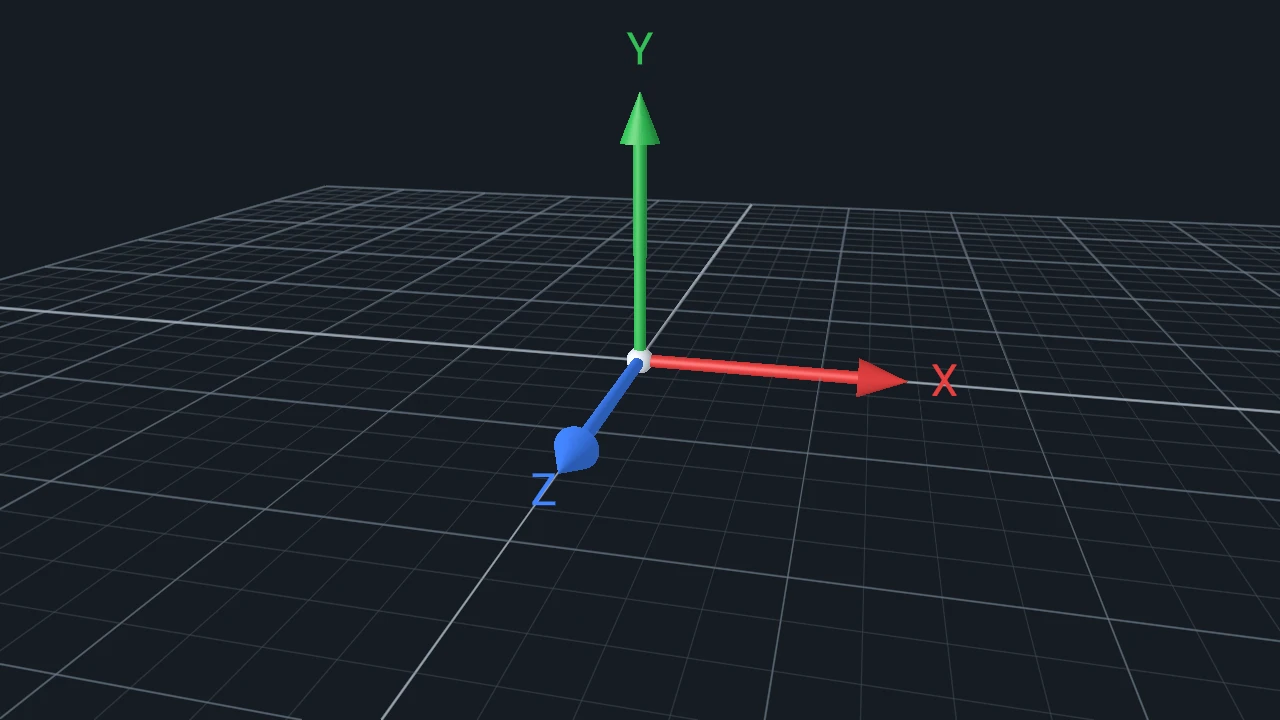
3D scene coordinates
For 3D scenes, keep object positions in the model/world coordinate system chosen by the example, then use a camera and a 3D controller:
DvzCameraDesc camera = dvz_camera_desc();
camera.view.eye[2] = 3.0f;
dvz_panel_set_camera_desc(panel, &camera);

DvzController* controller = dvz_arcball(scene, NULL);
dvz_panel_bind_controller(panel, controller, DVZ_DIM_MASK_XYZ);
Use arcball, turntable, or fly controllers for 3D panels. Turntable provides world-up-constrained orbiting; there is no separate orbit controller. Use panzoom for 2D panels. Mixing a 2D controller with 3D camera navigation usually means the panel and visual coordinate model is not defined clearly enough.
Choosing domains
Set a domain when coordinates have external meaning, such as time, depth, distance, image sample indices, atlas positions, or projected map coordinates. Set both X and Y for ordinary 2D navigation so the visible rectangle is explicit.
Use dvz_panel_visible_domain() when you need the current data interval after controller changes.
Use dvz_panel_transform_point() for interactive point conversions between data, view, panel, and
pixel spaces. Do not pre-transform retained visual arrays just to fit the panel domain; upload data
positions and let the scene perform that mapping.
Important details
Panel domains describe the visible data range. Controllers modify the view over that domain. Visual transforms are for object-level placement and should not replace a panel domain when the task is ordinary data navigation.
Keep these boundaries clear:
- Domains describe the visible data interval for one panel dimension.
- Attachment coordinate space tells the panel how to interpret one visual's positions.
- Controllers update the view or camera state, not the source data.
- Visual transforms move or scale one visual relative to its attachment space.
- Texture coordinates and field sample coordinates are separate from panel data coordinates.
Nonlinear and geographic projections are not scene-managed in v0.4. Project those data on the CPU, upload ordinary Cartesian positions or sampled fields, and keep projection metadata in labels, legends, annotations, or application state.
Pointer input and queries start from host or figure pixels, then pass through the target panel and
panel transform. Convert figure pointer coordinates with dvz_panel_transform_point() before
calling dvz_panel_query_px(), or call dvz_panel_query_data() when the application already has a
data-coordinate query point. Do not treat CPU geometry coordinates as a substitute for rendered
query behavior; pick/probe results should follow the same transform, clipping, depth, and shader
path as rendering.
Common mistakes
- Uploading pixel coordinates to a data-space panel.
- Uploading pre-normalized view coordinates but leaving the visual in the default
DVZ_VISUAL_COORD_DATAspace. - Setting only one axis domain and expecting aspect-preserving 2D navigation.
- Using a visual transform to compensate for a wrong data domain.
- Mixing 2D panzoom with 3D turntable or arcball camera control.
- Pre-projecting geographic or nonlinear data without recording the projected units.
Next steps
Complete and related examples
- Canonical complete example: Coordinate System - Source:
examples/c/features/coordinate_system.c - Panel View 2D - Source:
examples/c/features/panel_view2d.c - User Scale - Source:
examples/c/features/user_scale.c